





How to Improve Your Home WiFi Signal (2026 Guide)
4 September 2026
Do you find that the WiFi does not reach the bedroom or drops during video calls? You are not alone. The wireless signal is affected by distance, walls, and even your household appliances. But before calling your provider or buying an expensive repeater, there is plenty you can do. In this guide, we explain how to improve your home WiFi signal step by step, with solutions ranging from the simplest (changing the channel) to the most technical (installing an access point). With patience and a few tweaks, you will notice a marked improvement in speed and stability. And if, in the end, you need to boost coverage, we will tell you which equipment to choose based on your situation, without driving you up the wall or emptying your wallet.
Quick diagnosis: what is the real problem?
Before touching anything, it is worth knowing whether the fault lies in your connection speed or in signal distribution. Try this test: connect a laptop via Ethernet cable to the router (or use your phone with an adapter) and measure with a web tool like Speedtest. Note down the download and upload speeds. Then repeat the test over Wi-Fi from the same room and from the furthest one. If you get 300 Mbps over cable but only 20 over Wi-Fi, the bottleneck is your wireless network. If even over cable you do not reach what you are paying for, the problem may lie with the operator or with the router itself.
You can also use free apps such as WiFi Analyzer (Android) or NetSpot (Windows/macOS) to check signal strength in every corner and detect interference. With that data, decide whether you need to relocate the router, switch bands or add an access point. Do not feel overwhelmed: in the following sections we explain how to interpret those measurements and which actions are most effective.
Check the band: 2.4 GHz vs. 5 GHz
Most routers broadcast on two frequencies: 2.4 GHz (greater range, but more congested) and 5 GHz (shorter range, but faster and with less interference). If you are far from the router, your device will connect to 2.4 GHz, which is normal. But if you are in the same room and your phone switches over to 2.4 GHz, you are losing speed. Set up your router so that it broadcasts both bands with different names, so that you can choose manually. And on your phone, forget the 2.4 GHz network when you are close to the router.
4 common mistakes that weaken your WiFi signal
All too often, slow WiFi is down to avoidable mistakes. Here are the most common ones so you can fix them today.
1. Router hidden or poorly positioned
The router is not a decorative item. Putting it inside a cabinet, behind the television or in the basement is a sure way to ruin your network. The signal propagates as a wave, and every obstacle (wall, door, mirror) attenuates it. Ideally, it should be placed in a central, elevated position, away from metal objects and large appliances such as the microwave or fridge. If you live in a small flat, a good spot is the hallway or a shelf at mid-height.
2. Using a congested channel
In areas with many neighbours, wireless channels become congested. In the 2.4 GHz band, there are only three non-overlapping channels (1, 6 and 11), and if the whole block uses the same one, there will be collisions. Go into your router’s settings (usually via 192.168.1.1) and switch to a less crowded channel. WiFi analysis apps will tell you which ones are free. On 5 GHz, there are far more channels, so problems are rare there.
3. Router firmware not updated
Firmware is the router’s operating system. Updating it fixes bugs, improves security and sometimes even adds features. Most routers are updated from the admin panel or via the manufacturer's app (TP-Link, Asus, AVM, etc.). Do not overlook it: an outdated version may be causing compatibility issues with your devices.
4. Outdated or poorly configured devices
WiFi is a two-way agreement between the router and the device. If your phone is old and only supports WiFi 4 (802.11n), you will not be able to take advantage of a WiFi 6 router. In addition, some devices connect to the 2.4 GHz band by default even when the router has 5 GHz. Check the WiFi settings on each device and, where possible, forget the old network and reconnect.
Improve your signal with simple router changes
You don't need to be an engineer to get the most out of your current router. You can make these adjustments in ten minutes.
Change the password and security type
Use strong passwords (at least 8 characters, with numbers and symbols) and enable WPA2 or WPA3, never WEP, as it is insecure and slows down the network. Also, if you have guests, set up a guest network so they don't use your main bandwidth.
Prioritise devices with QoS
The QoS (Quality of Service) feature allows you to prioritise traffic. For example, if you're on a work video call, you can give maximum priority to your laptop so that other devices don't steal bandwidth from it. Look in the router panel for the QoS section or "Traffic prioritisation" and assign priorities according to your usage.
Change the router's operating mode
If your router is dual band, make sure it broadcasts on both bands simultaneously. Sometimes 5 GHz is disabled by default. Go into the wireless settings and enable it. You can also separate the bands (give them different SSIDs) to have better control over them.
Relocate the router: practical tricks
Although we've already mentioned this, it's worth insisting: try raising it (for example, on a shelf) and keeping it at least 30 cm away from the wall. Avoid pointing it towards a corner; if it has external antennas, position them alternately vertically and horizontally to cover all directions. And if the router is one of those provided by operators, consider asking the technician to put it in modem mode and use a higher-quality router of your own.
What equipment you need to make the definitive leap
If tweaks aren't enough, it's time to upgrade your hardware. This is where several types of devices come into play, each designed for a specific situation.
WiFi repeater: the budget-friendly solution
A WiFi repeater captures your signal and retransmits it further afield. It's cheap (from around €15-20) and easy to set up, but it has a drawback: it will use half of your bandwidth because it receives and transmits on the same channel. However, for eliminating a specific dead zone (such as a garage or a distant bedroom), it works well. Choose one with Dual Band WiFi and, ideally, one that supports the same generation as your router (WiFi 5 or WiFi 6).
PLC (Powerline): stable signal through the electrical wiring
PLC adapters use your home's electrical wiring to send data. This is useful in homes with thick walls or separate floors. You only need a socket near the router and another in the room where you want to improve the signal. Speed depends on the electrical installation, but in general, it's more stable than a WiFi repeater. With standards such as HomePlug AV2, real speeds of 300-500 Mbps can be achieved under good conditions.
WiFi access point: for professional coverage
If you have a large house or several floors, an access point (AP) connected by cable to the router will give you the best experience: it broadcasts its own signal without degrading it and supports many more devices. It requires installation (mounting it on the ceiling or wall) and Ethernet cabling, but it's the solution used by businesses. Modern APs support WiFi 6 and manage roaming so that devices automatically switch to the nearest AP.
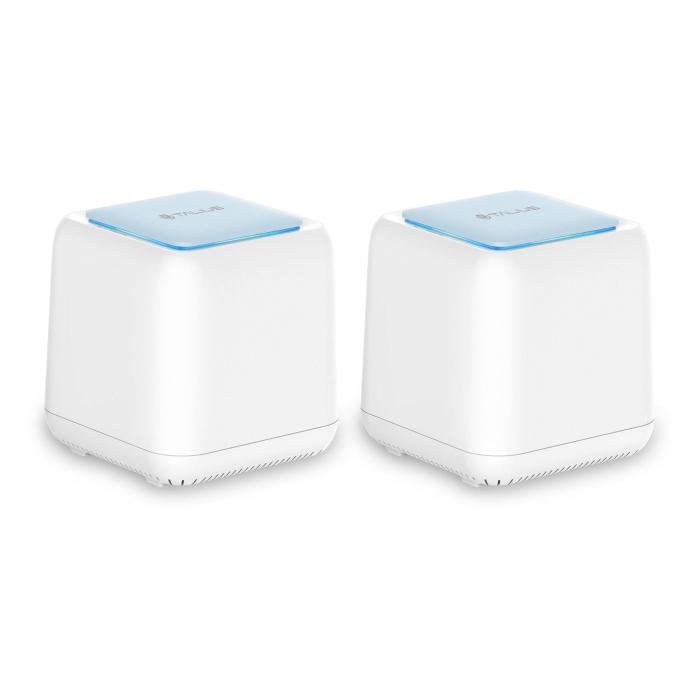
Mesh system: the best option for large homes
A mesh network is a set of nodes that create a single WiFi network without dropouts. Unlike a traditional repeater, the nodes communicate with each other intelligently and don't reduce speed as much. They are perfect for 100 m² flats where the router is far from the living room, or for two-storey houses. That said, their price is higher (from €50 for two units), but the stability and ease of setup justify it if you care about connection quality.
To make it clear, this comparison table summarises the options:
| Feature | WiFi repeater | PLC | Access point | Mesh system |
|---|---|---|---|---|
| Price per unit | From €15 | From €30 | From €40 | From €50 (2 nodes) |
| Installation | Very easy (plug in) | Easy (plug in) | Requires Ethernet cable | Simple (app) |
| Effective speed | Reduced by half | Normal, depending on wiring | Maximum (via cable) | High (with dedicated backhaul) |
| Ideal for… | Specific rooms | Separate floors | Very large homes or businesses | Homes over 100 m² |
| Unified management | No (each has its own network) | No (usually doesn't have it) | No (needs configuration) | Yes (single app) |
As you can see, there's no universal "best" device: it all depends on the area to be covered and your budget. If you live in a small flat and it only fails in one room, a decent repeater does the job. In a two-storey house, PLC or mesh is more reliable.
Frequently Asked Questions
Why is my WiFi slow if I am right next to the router?
Your device may be connected to the 2.4 GHz band instead of the 5 GHz one, or there may be interference from other wireless devices (microwaves, Bluetooth, cameras). Switch to the 5 GHz band or adjust the router's channel.
How often should I restart my router?
There is no set number. If you notice connection dropouts or slow speeds, try restarting it (unplug it for 30 seconds and wait for it to resync). Avoid restarting it daily, as this is unnecessary and could wear out the equipment.
Are WiFi extenders legal in the EU?
Yes, they are legal as long as they comply with European regulations (CE marking) and do not exceed the permitted transmission power. Any extender purchased from a reputable retailer will comply with this.
Can I improve my WiFi signal by installing more powerful antennas on my router?
It depends on the model. Many routers have removable external antennas, but replacing them with higher-gain ones is not always compatible. Check the manual or look up forums. If it is not possible, an extender or access point will deliver better results.
Is it worth replacing my provider's router with my own?
If your provider gives you a basic router and you have many devices, yes. Current consumer-grade routers offer better bandwidth management, firmware updates, and WiFi 6 support. Just make sure your provider lets you put their router into modem (bridge) mode.
Conclusion: with these steps, your WiFi will stop giving you trouble
Improving the WiFi signal at home is not rocket science: with good router placement, a clean channel and, if necessary, a repeater or a mesh system, you can achieve stable coverage throughout the whole house. Start with the basic settings and see if things improve before spending any money. If you reach the point of having to buy equipment, at Probyte we have options for all budgets: from compact repeaters to professional access points. Visit our store, filter by your router type and choose the one that best suits your home. Don't let your WiFi ruin your day: with a small investment, the connection will be the one you always dreamed of.
Latest posts

Philips 7000/12: 43" 4K Smart TV with Wifi | Probyte
26 September 2026
Introduction The Philips 7000/12 is a 43-inch (109.2 cm) television that combines 4K Ultra HD resolution, Wifi connectivity and Smart TV features in an elegant black design. If you're looking for a
Read more
LG 27TQ615S-WZ Smart TV 27'' Full HD | Probyte Deal
26 September 2026
Looking for a compact TV with all the features of a larger model? The LG 27TQ615S-WZ packs 27 inches, Full HD, webOS and WiFi into an elegant white design for kitchens and bedrooms.
Read more
16GB vs 32GB vs 64GB RAM: which is worth it?
21 September 2026
More isn't always better: choosing the right RAM depends on how you use your PC, not just on having more capacity. The key is balancing performance, usage and future-proofing to avoid paying over the odds.
Read more