





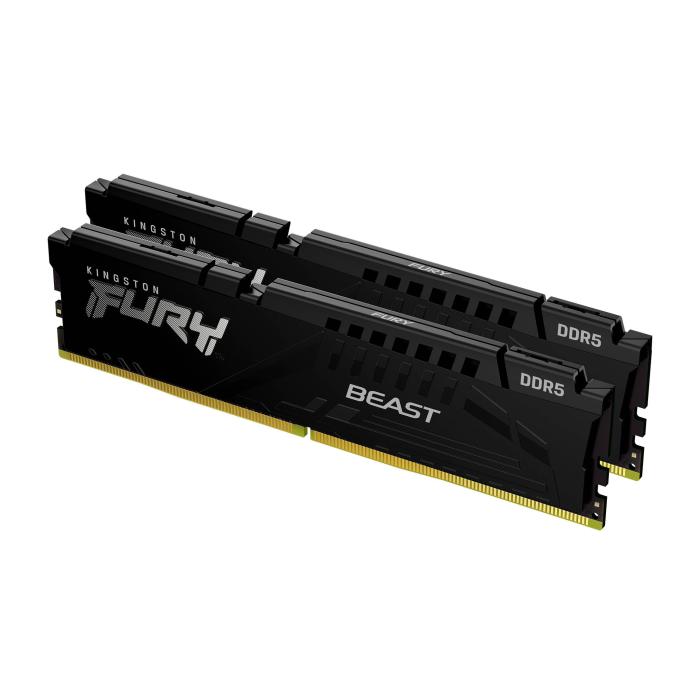
How Much RAM Do I Need? 2026 Complete Guide | Probyte
1 August 2026
Choosing the amount of RAM for your computer can be a complex decision, especially when options range from 4 GB to 64 GB or more. The most common question among PC users is: how much RAM do I really need for my day-to-day tasks? The answer is not one-size-fits-all, as it depends on how you use your machine. In this comprehensive guide from Probyte, we analyse each user profile, from the office worker using Word and Chrome to the 3D designer or avid gamer. We also explain key concepts like RAM speed, latency, and the difference between DDR4 and DDR5. By the end, you'll know exactly how many GB you need, what type of memory suits you best, and how to get the most out of your investment. Keep reading because we're giving you the definitive answer.
What Is RAM and Why Is It Important to Know How Much You Need?
RAM (Random Access Memory) is the component of your computer that temporarily stores the data the processor needs at any given moment. Think of it as your PC's workbench: everything you have "on the bench" (open applications, browser tabs, files you're editing) sits in RAM. The more space you have on that bench, the more tasks you can perform simultaneously without the system slowing down.
Performance and Multitasking
The amount of RAM directly determines how many applications you can keep open at the same time before your computer starts using the hard drive as "virtual memory". A clear example: if you have 4 GB of RAM and open Chrome with several tabs, the system will become sluggish because there isn't enough room in memory. In contrast, with 16 GB, you can run Chrome, Spotify, a photo editor, and several File Explorer windows all at once without issues.
Apparent System Speed
RAM is one of the factors that most influences the feeling of smoothness. When you open a program, it loads from the drive into RAM. If memory fills up, the operating system starts moving data between RAM and the drive, a much slower process. This causes pauses, stuttering, and longer loading times. That's why having sufficient RAM prevents these interruptions.
Why It Matters to Know How Much You Need
Choosing the right amount of RAM avoids two issues:
- Running short: Experiencing slowness, unexpected program crashes, or being unable to run certain applications.
- Over-speccing: Spending money on memory you won't actually use, since other components (CPU, drive) also limit performance.
Understanding your usage patterns (gaming, video editing, office work) helps you get the right capacity, optimising both your budget and your daily performance.
Key factors determining how much RAM you need
There is no magic number for RAM that works for all users. How much you actually need depends on a combination of factors, from your operating system to how you work. Here we analyse the four key pillars that influence this decision.
Operating system and its base footprint
Every operating system consumes a fixed amount of RAM just to boot and remain running. Windows 11, for example, can use between 2 and 4 GB right after startup, while lightweight Linux distributions sit at 512 MB or 1 GB. If you use Windows, you need at least 4 GB on top of the system’s consumption to keep your computer from slowing down. In short, the OS sets the minimum floor for how much RAM your PC needs.
Simultaneously open programs
It’s not enough to look at a single application; the critical factor is how many you have open at once. Each Chrome tab can consume between 200 and 500 MB, so a browser with 10 tabs already adds 2–4 GB. Add Slack, Spotify and a text editor, and the total quickly rises. The practical rule is: the more apps you have running in the background, the more RAM you’ll need to prevent the system from using the paging file (on the hard drive), which is much slower.
Type of applications and their demands
Not all apps consume the same amount. Basic office tools (Word, Excel) need little RAM, but the picture changes with:
- Video editing and 3D design: programmes like Premiere Pro, After Effects or Blender can require 16–32 GB for medium-sized projects.
- Gaming: modern titles like Cyberpunk 2077 or Call of Duty recommend 16 GB as a minimum, though 32 GB already provides headroom for streaming or multitasking.
- Virtualisation and development: running virtual machines with VMware or Docker doubles or triples the requirement (16–32 GB per active VM).
Usage habits and multitasking
Your daily behaviour sets the upper limit. A user who only browses and watches YouTube with 4 open tabs barely needs 8 GB. By contrast, someone working in Photoshop, with 20 Chrome tabs and a virtual machine running in the background should consider 32 GB or more. The key is to observe your own workflow: if you notice your computer slowing down when opening several apps, it’s a sign you’re running short.
| Factor | Impact on RAM | Practical example |
|---|---|---|
| Operating system | Fixed base (2–4 GB) | Windows 11: 4 GB minimum |
| Open programmes | Cumulative (0.5–2 GB each) | 10 Chrome tabs + Spotify + Word: ~6 GB |
| Application type | High (4–32 GB depending on task) | 4K video editing: 16–32 GB |
| Usage habits | Variable (8–64 GB) | Extreme multitasking: 32 GB+ |
Evaluate these four factors before deciding how much RAM to install in your PC. The combination of your operating system, the applications you use, their demands and your multitasking defines the exact balance between smooth performance and unnecessary expense.
How Much RAM Do You Need Based on Your Usage? (A Guide by Profile)
The amount of RAM your computer needs depends directly on the applications you run and how you use them. Working with text documents is not the same as rendering 4K videos or playing the latest games. To help you decide, here is a practical guide broken down by usage profile, with recommendations cross-referenced against real software requirements in 2026.
Recommended RAM by Profile Table
| Usage Profile | Minimum Recommended RAM | Optimal RAM | Key Notes |
|---|---|---|---|
| Office work and web browsing | 8 GB | 16 GB | With 8 GB you can use Office and several browser tabs, but 16 GB prevents slowdowns with Chrome or Edge open. |
| Gaming (current titles) | 16 GB | 32 GB | Games like Starfield or Cyberpunk 2077 recommend 16 GB; 32 GB allows multitasking without crashes or micro-stutters. |
| Video editing (1080p/4K) | 16 GB | 32-64 GB | Programs like DaVinci Resolve or Premiere Pro need 32 GB for 4K projects; 64 GB for heavy effects or multicam. |
| Programming and development | 16 GB | 32 GB | IDEs like Visual Studio, virtual machines and Docker containers consume a lot of RAM; 32 GB avoids bottlenecks. |
| Home servers or NAS | 8 GB | 16-32 GB | Depends on the number of services (Plex, Nextcloud, Docker). 16 GB is safe for 5-10 lightweight containers. |
Detailed Explanations
For office work and browsing: If your main use is Word, Excel, email and a browser, 8 GB is the functional minimum, but you'll notice an improvement with 16 GB if you leave dozens of tabs open. Modern browsers manage RAM aggressively, so 16 GB is the most comfortable option.
For gaming: Most current titles run well with 16 GB, but games like Hogwarts Legacy or Starfield can exceed 12 GB of usage, leaving little headroom for the system. With 32 GB you ensure the game isn't affected by other background applications (Discord, browser). Additionally, games at 1440p or 4K tend to consume more memory.
Video editing: Don't skimp here. A 1080p video project with light effects runs on 16 GB, but if you work in 4K, you need 32 GB as a minimum. Editing programs load full frames into RAM for preview, and 64 GB is recommended if you use heavy plugins or work with multicam.
Programming and servers: Modern development environments (Visual Studio Code with extensions, JetBrains, Docker) can consume 8-12 GB just with the IDE open. If you also run local databases or virtual machines, 32 GB becomes a necessity. For servers, RAM depends on the number of services: 8 GB works for a couple of containers, but 16-32 GB is more realistic if you have several users or applications like Plex.
Mistakes to Avoid
- Over-speccing for a low profile: If you only browse, you don't need 64 GB; you waste money and energy unnecessarily.
- Coming up short in gaming or editing: 8 GB for current games or video editing causes constant crashes and slowdowns.
In summary: always choose a capacity that covers your current usage with some headroom for a couple of years, without going overboard. The table above gives you a reliable starting point for your decision.
How much RAM does the ideal gaming PC need in 2026?
The amount of RAM a gaming PC needs in 2026 depends on the type of games, resolution, and whether you’re streaming or multitasking. For current titles like Cyberpunk 2077, Call of Duty: Modern Warfare III or Starfield, 16 GB is the bare minimum, but it’s starting to feel tight in demanding scenarios. If you’re gaming at 1440p or 4K, or planning to use heavy mods, 32 GB has become the recommended standard to avoid stuttering and long load times. For future releases like GTA VI or titles with intensive ray tracing, 32 GB ensures smooth performance even with ultra textures.
Recommendations by resolution and game type
- 1080p (casual gaming): 16 GB is enough for most current games, such as Fortnite, Valorant or Apex Legends. If you’re doing light streaming (without GPU encoding), 32 GB prevents FPS drops.
- 1440p (mainstream gaming): 32 GB is ideal for titles like Baldur’s Gate 3 or Alan Wake 2, which use more memory for textures and physics. If you play with ray tracing, 32 GB reduces swapping.
- 4K and streaming: 32 GB is almost mandatory. Games like Microsoft Flight Simulator or Hogwarts Legacy on ultra can use up to 20 GB of RAM alone, and adding streaming (OBS, Discord) could max out 16 GB. For streaming with multiple background applications, 64 GB is recommended if you’re a content creator.
Impact of future releases
Games from 2026 and 2026, such as Grand Theft Auto VI, Fable or Avowed, are designed for consoles with 16 GB of shared RAM, but on PC, operating systems and drivers increase consumption. 32 GB prepares you for 3-4 years without needing an upgrade, while 16 GB might force you to lower textures or close background programs. If you’re building a PC now, prioritise 32 GB if your budget allows.
Summary table: gaming RAM in 2026
| Usage | Recommended RAM | Notes |
|---|---|---|
| Basic 1080p gaming | 16 GB | Enough, but tight for modern titles. |
| 1440p/4K gaming | 32 GB | Standard for smooth performance and ray tracing. |
| Gaming + streaming | 32-64 GB | 64 GB if you edit video live. |
| Future releases | 32 GB | Guarantees performance in 2026-2027. |
In short, 32 GB is the ideal amount for a gaming PC in 2026, balancing price and performance. If you’re on a tight budget, 16 GB will work for less demanding titles, but don’t expect an optimal experience in AAA games at max settings. To avoid bottlenecks, make sure to pair the RAM with a matching CPU and GPU, such as a Ryzen 7 or Intel Core i7 alongside an RTX 4070 or higher.
DDR4 vs DDR5: does generation affect the amount of RAM you need?
Although the number of GB is the main factor, the generation of RAM memory (DDR4 or DDR5) influences how you perceive that capacity. DDR5 won't let you run more programs than DDR4, but its higher speed and efficiency can make 16 GB perform like 24 GB in very demanding tasks.
Key differences that matter beyond GB
- Speed (MHz) and latency (CAS): Typical DDR4 ranges from 3200 to 3600 MHz with CL16-CL18 latencies. DDR5 starts at 4800 MHz and exceeds 6000 MHz, but with higher latencies (CL30-CL40). In gaming, DDDR5's higher latency can be offset by its bandwidth, offering better FPS in titles that benefit from fast memory (such as Cyberpunk 2077 or Starfield).
- Energy efficiency: DDR5 runs at 1.1V versus 1.2V for DDR4, generating less heat. Ideal if you use laptops or build a silent PC.
- Channels and banks: DDR4 has one bank per module; DDR5 divides each module into two banks (each with 32 bits). This doubles the effective bandwidth without needing more GB, improving data transfers in video editing or AI.
Should you choose more GB of DDR4 or fewer GB of DDR5?
| Use case | Recommendation | Reason |
|---|---|---|
| Gaming + light multitasking | 16 GB DDR5 | Extra speed in modern games without saturating RAM. |
| 4K/8K editing or rendering | 32 GB DDR5 | Greater bandwidth speeds up exports and previews. |
| Standard office work | 16 GB DDR4 | Enough for Office, browsing, and video calls without overspending. |
| Streaming + gaming | 32 GB DDR5 | DDR5 speed prevents stuttering when combining gaming and transcoding. |
In practice, for gaming, 16 GB of DDR5 at 6000 MHz usually provides a better experience than 32 GB of DDR4 at 3200 MHz in games that use a lot of data per second. However, if you work with 20-30 Chrome tabs, edit RAW photos, or virtualise systems, the amount of RAM remains a priority. A user with 32 GB DDR4 will have fewer bottlenecks than one with 16 GB DDR5 in those uses.
Practical conclusion
Don't choose DDR5 just for the generation: check if your motherboard and CPU support it (AMD Ryzen 7000 / Intel 12th Gen onwards) and if your budget allows it. If you have to decide between 16 GB DDR5 or 32 GB DDR4, for pure gaming prefer the former; for heavy work, the latter. In laptops, DDR5 significantly extends battery life.
Common Mistakes When Choosing PC RAM
Choosing RAM might seem straightforward, but it is easy to make mistakes that affect system performance or stability. Knowing the most frequent pitfalls will help you make an informed decision and avoid unnecessary spending.
Buying More RAM Than You Need
One of the most widespread mistakes is purchasing 64 GB or more when your actual usage doesn't require it. For gaming, 16 GB is sufficient for most titles; 32 GB is overkill except for very heavy workloads. Excess RAM does not speed up your system if the other components don't demand it; it only empties your wallet. Assess your real needs first before opting for high capacities.
Mixing Incompatible Modules
Combining modules with different frequencies, latencies, or voltages can cause instability. For example, using a DDR4 3200 MHz memory stick with another at 2666 MHz forces the system to run at the lower speed, wasting the potential of the faster one. Furthermore, mixing brands or non-certified kits to work together can lead to random errors, crashes, or blue screens. The ideal approach is to use an identical kit from the factory.
Ignoring the Motherboard and Processor
Not all RAM is compatible with every motherboard. Each motherboard supports a specific type (DDR4 or DDR5) and a maximum speed. If you install 3600 MHz memory on a board that only supports 3200 MHz, the system will cap it at that frequency. You should also check the number of slots and the total maximum capacity. Always consult the manufacturer's Qualified Vendor List (QVL) before buying.
Not Activating the XMP/EXPO Profile
Many users buy high-speed memory but forget to activate the XMP (Intel) or EXPO (AMD) profile in the BIOS. Without this setting, RAM runs at its default speed, which is much lower than advertised. For example, a 3600 MHz kit will run at 2133 MHz if not configured. Activating the profile is straightforward and essential to get the performance you paid for.
Overlooking Latency and Frequency
Focusing solely on capacity without considering frequency and latency can lead to suboptimal performance. In gaming, for instance, RAM at 3200 MHz with CL16 latency performs better than one at 2666 MHz with CL19. Don't overlook these numbers: look for a balance between speed and timings, especially if you use memory-sensitive applications.
Installing Modules in the Wrong Slots
Placing a single module in the wrong slot or two modules in slots of the same channel prevents you from taking advantage of dual-channel mode, which doubles the bandwidth. Consult your motherboard manual: typically, for two modules, you should use slots A2 and B2 (second and fourth counting from the processor). Dual-channel mode can improve performance by up to 30% in certain tasks.
Frequently Asked Questions
What happens if I mix RAM from different brands?
Mixing brands can work, but it’s not recommended. Differences in latency and voltage may cause instability. If you do it, use modules with the same frequency and latency, and test them with stress tools like MemTest86. Even so, the safest option is to use an identical kit.
Is it bad to have too much unused RAM?
It’s not harmful, but it’s wasted money if not utilised. The operating system uses extra RAM as a cache to speed up tasks, but the benefit is minimal if you don’t run demanding applications. It’s better to invest in other components like the SSD or graphics card.
Can I install DDR5 in a DDR4 motherboard?
No, they are physically incompatible. The notches and connectors differ; additionally, the processor’s memory controller only supports one type. Always check which generation your motherboard supports before buying. DDR5 requires a compatible motherboard and processor.
Does RAM frequency affect gaming performance?
Yes, especially in games with high FPS rates. A higher frequency reduces data access latency. For example, moving from 2666 MHz to 3600 MHz can improve performance by 5% to 15% in CPU-bound games. It’s not critical, but it helps if your processor supports it.
How to Check How Much RAM Your Computer Is Using Right Now
Knowing how much RAM your machine is consuming in real time is the first step in deciding whether you need to upgrade. On both Windows and macOS, the process is straightforward and lets you identify whether memory usage is high for the tasks you're performing.
Checking RAM Usage in Windows 10 and 11
The most direct method on Windows is using Task Manager. Press Ctrl + Shift + Esc or right-click on the taskbar and select "Task Manager". Go to the "Performance" tab and click on "Memory". Here you'll see:
- Total RAM installed on your machine.
- In use: the amount of memory currently occupied.
- Available: free memory for new applications.
- Standby memory: cached data that can be freed if another app needs it.
If the "In use" percentage exceeds 80–90% during normal use (without very heavy programs), it's a sign that you need more RAM. You can also open the "Processes" tab and sort by "Memory" (click on the column header) to see which applications consume the most. For example, a browser with many tabs open can use several GB.
Checking RAM Usage in macOS
On a Mac, open Activity Monitor (search for it with Spotlight or in Applications > Utilities). Go to the "Memory" tab. The key data points are:
- Memory Pressure: a colour-coded graph (green, yellow, red). Green is good, red indicates the system needs more RAM.
- Physical Memory: total installed capacity.
- Memory Used: includes apps and system data.
- Cached Files: data that speeds up performance by being reused.
Also, look at the "Memory" column in the process list. If you see an application consuming several GB without reason, it may be causing the bottleneck.
Practical Tip: Evaluate Your Typical Usage
Don't rely on a single measurement. Keep open the apps you use daily (browser with several tabs, text editor, etc.) and check the consumption for at least 10–15 minutes. If the usage percentage remains high, consider upgrading your RAM. Conversely, if you have plenty of free memory most of the time, you probably don't need more capacity.
Frequently Asked Questions
Is 32 GB of RAM overkill for a normal user?
It depends on the use case. For office work, web browsing, or light multimedia, 32 GB is excessive and 8-16 GB is sufficient. However, for modern gaming, 4K video editing, 3D modelling, or virtual machines, 32 GB becomes a smart investment that extends the life of your system. If you work with very large files or extreme multitasking, it is not wasteful.
Does RAM capacity matter more than its speed?
Capacity is the priority: if you don't have enough, the system will run slowly even with high speed. Once the minimum requirement is met (e.g. 16 GB for gaming), DDR5 frequency improves performance in intensive tasks, but it does not compensate for insufficient capacity. For general use, always prioritise having enough GB over MHz.
Is it worth upgrading from 8 GB to 16 GB in 2026?
Yes, especially if you use Windows 11, browse with many tabs open, edit heavy documents, or play recent titles. 8 GB is barely enough for the operating system and basic applications, leading to crashes or slowdowns. 16 GB provides comfortable headroom for normal multitasking and light gaming without having to close programmes.
Can I mix RAM modules of different capacities or speeds?
Technically yes, but it is not recommended. The system will run in single-channel mode or at the speed of the slowest module, losing performance. It can also cause instability or prevent the PC from booting. For optimal performance, use identical modules in capacity, speed, and latency, ideally from the same kit.
Which is better: two 8 GB modules or one 16 GB module?
Two 8 GB modules in dual channel offer more bandwidth than a single 16 GB stick, improving performance in gaming, rendering, and data copying. Dual channel is especially beneficial for modern processors. Only choose a single module if you plan to add another identical one later or on motherboards with only two slots.
Is laptop RAM the same as desktop RAM?
No. Desktop RAM uses the DIMM format (larger), while laptops use SODIMM (smaller and thinner). They are not physically interchangeable, although both can be DDR4 or DDR5. Before buying, check your system's supported form factor and compatible generation (DDR4 or DDR5).
Now that you know how much RAM you need, the next step is to choose the best for your system. At Probyte, you will find DDR4 and DDR5 RAM modules from the most reliable brands (Corsair, Kingston, G.Skill, Crucial) at the best price. Whether you are looking for a 16 GB kit for gaming or 32 GB for professional work, our catalogue offers verified options. Don't risk your PC's performance: visit Probyte.com and upgrade your memory with total confidence.
Latest posts

Philips 7000/12: 43" 4K Smart TV with Wifi | Probyte
26 September 2026
Introduction The Philips 7000/12 is a 43-inch (109.2 cm) television that combines 4K Ultra HD resolution, Wifi connectivity and Smart TV features in an elegant black design. If you're looking for a
Read more
LG 27TQ615S-WZ Smart TV 27'' Full HD | Probyte Deal
26 September 2026
Looking for a compact TV with all the features of a larger model? The LG 27TQ615S-WZ packs 27 inches, Full HD, webOS and WiFi into an elegant white design for kitchens and bedrooms.
Read more
16GB vs 32GB vs 64GB RAM: which is worth it?
21 September 2026
More isn't always better: choosing the right RAM depends on how you use your PC, not just on having more capacity. The key is balancing performance, usage and future-proofing to avoid paying over the odds.
Read more